
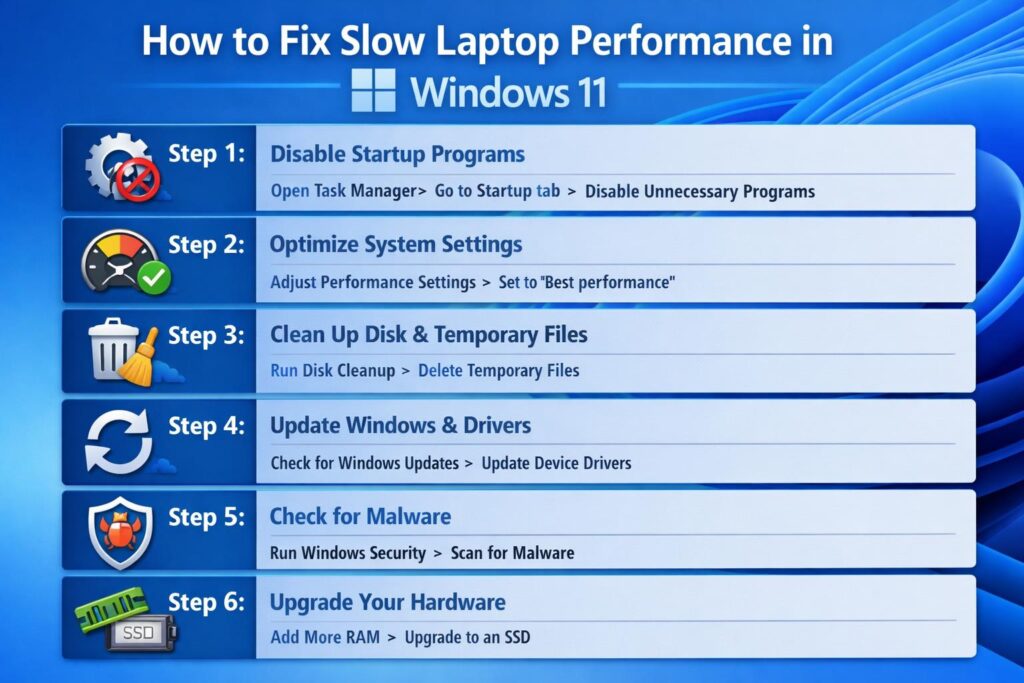
How to fix a slow Windows 11 laptop (quick overview)
How to fix a slow Windows 11 laptop is one of the most common questions users ask after a few months of use. The system starts fine on day one. Then updates pile up, apps multiply, and suddenly even opening a browser feels like a coffee break.
Here’s the good news: in most cases, you don’t need a new laptop. You just need the right fixes, applied in the right order. This guide focuses on safe, real, and Microsoft-recommended methods—no risky tweaks, no fake “boosters,” and no guesswork.
Let’s fix the slowdown step by step.
How to know your Windows 11 laptop is slowing down
If you notice these signs, performance tuning will help:
- Startup takes longer than usual
- Apps open slowly or freeze briefly
- Fans run loudly during simple tasks
- File Explorer feels laggy
- Battery drains faster than before
These symptoms usually come from software load, not hardware failure.
How to fix a slow Windows 11 laptop: step-by-step solutions
Step 1: Disable unnecessary startup programs
Startup apps are the most common cause of slow boot times.
What to do:
- Press Ctrl + Shift + Esc to open Task Manager
- Go to the Startup tab
- Disable apps you don’t need at startup
Keep enabled: security software and system drivers
Disable safely: launchers, chat apps, update helpers
This single step often delivers instant improvement.
Step 2: Change power mode for better performance
Windows 11 sometimes prioritizes battery life over speed.
How to fix it:
- Open Settings → System → Power & battery
- Set Power mode to Best performance
Use Balanced mode on battery and Best performance while plugged in. This simple switch improves responsiveness.
Step 3: Free up storage space properly
Windows needs breathing room. Low storage slows everything.
Steps:
- Go to Settings → System → Storage
- Open Cleanup recommendations
- Remove:
- Temporary files
- Recycle Bin contents
- Old update files
Quick tip: The Downloads folder often hides large unused files.
Step 4: Update Windows and drivers
Outdated software causes performance bugs.
Do this:
- Windows Update: Settings → Windows Update → Check for updates
- Drivers: Install updates from your laptop manufacturer’s support page
Graphics drivers matter most for smooth performance, especially on laptops with integrated GPUs.
Step 5: Reduce visual effects
Windows 11 animations look nice—but they consume resources.
How to adjust:
- Search Advanced system settings
- Open Performance Settings
- Select Adjust for best performance
If you prefer balance, keep text smoothing and thumbnails enabled.
Step 6: Check for malware and unwanted software
Malware slows systems quietly.
Use built-in protection:
- Open Windows Security
- Select Virus & threat protection
- Run a Quick scan or Full scan
Avoid installing multiple antivirus programs. One is enough.
Step 7: Optimize browser performance
Browsers often use more RAM than Windows itself.
Fix it:
- Limit open tabs
- Remove unused extensions
- Enable Efficiency Mode (Edge and Chrome)
- Clear cached files regularly
This improves overall system speed, not just browsing.
Step 8: Find what’s slowing your laptop right now
Real-time monitoring helps.
How:
- Open Task Manager
- Sort by CPU, Memory, or Disk
- Identify apps using excessive resources
End only apps you recognize. Leave system processes alone.
Step 9: Uninstall unused programs
Too many apps create background load.
Steps:
- Go to Settings → Apps → Installed apps
- Sort by Size or Install date
- Remove:
- Trial software
- Duplicate utilities
- Old games and unused apps
This frees storage and reduces background activity.
Step 10: Reset Windows 11 (last resort)
If nothing helps, reset Windows while keeping your files.
How:
- Backup important data
- Open Settings → System → Recovery
- Click Reset this PC
- Choose Keep my files
This restores performance close to day-one levels.
How to keep your Windows 11 laptop fast long-term
Daily habits
- Close apps when done
- Avoid cluttered desktops
Weekly habits
- Restart your laptop
- Check Windows Update
Monthly habits
- Review startup apps
- Clean storage
- Update drivers
Small habits prevent big slowdowns.
Common mistakes to avoid
❌ Registry cleaners and “PC booster” tools
❌ Disabling system services without knowledge
❌ Running multiple antivirus programs
❌ Ignoring updates
✅ Use built-in Windows tools
✅ Make restore points before major changes
When hardware upgrades make sense
Software fixes solve most cases. Hardware upgrades help if:
- Your laptop uses an HDD instead of an SSD
- RAM is limited (8GB or less with heavy multitasking)
An SSD upgrade provides the biggest speed jump.
Final summary: how to fix a slow Windows 11 laptop effectively
To recap:
- Disable startup apps
- Switch to Best performance mode
- Free up storage
- Update Windows and drivers
- Reduce visual effects
Most users notice improvement after the first three steps alone.
Final thought
A slow laptop feels frustrating, but it rarely means failure. How to fix a slow Windows 11 laptop comes down to removing clutter, updating wisely, and letting Windows do what it was designed to do.
Take it step by step. Even small changes add up to a faster, smoother system.