
Microsoft continues to push the boundaries of artificial intelligence with significant improvements to Copilot Vision, making it one of the most capable AI assistants for Windows users. The latest update focuses on better visual understanding, smarter contextual assistance, and deeper integration across Microsoft apps and services.
Rather than simply responding to typed prompts, Copilot Vision can now better interpret what is displayed on your screen, helping users complete tasks more efficiently without constantly switching between applications.
Whether you’re a student, professional, content creator, or casual PC user, the newest Copilot Vision enhancements promise a more intuitive and productive AI experience.
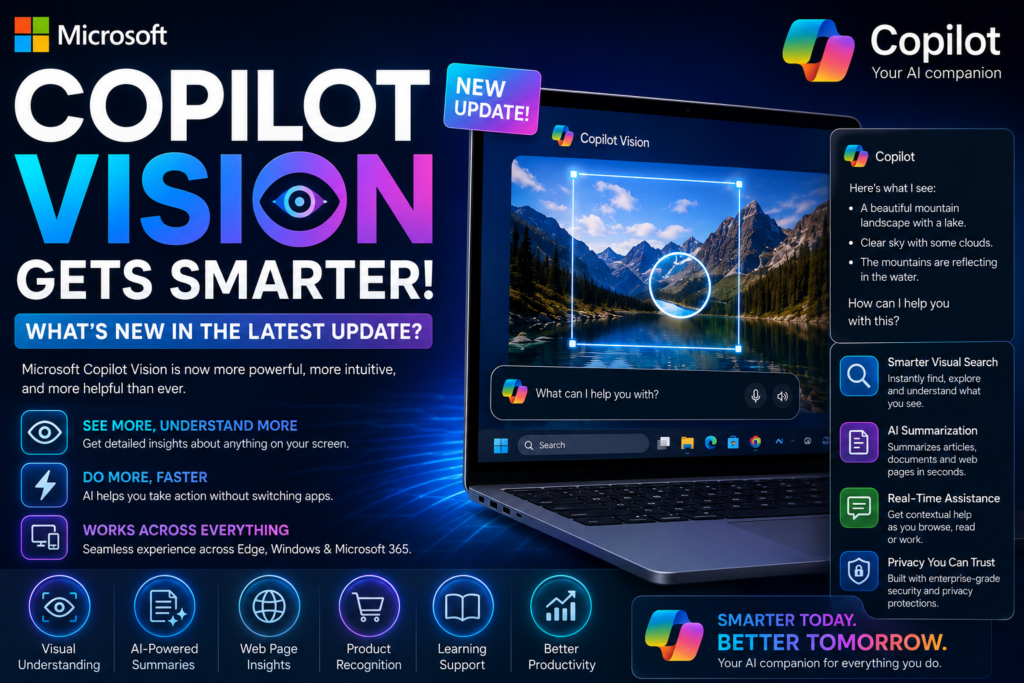
What Is Microsoft Copilot Vision?
Microsoft Copilot Vision is an AI-powered feature that enables Copilot to understand the content visible on your screen. Instead of relying only on text-based prompts, it analyzes windows, documents, images, websites, and applications to provide relevant guidance in real time.
This allows users to ask questions such as:
- “Summarize this webpage.”
- “Explain this chart.”
- “Help me edit this document.”
- “Compare these two products.”
- “Find errors in this spreadsheet.”
The AI understands visual context, making interactions more natural and useful.
What’s New in the Latest Copilot Vision Update?
Microsoft has introduced several upgrades designed to improve accuracy, responsiveness, and productivity.
1. Smarter Screen Understanding
Copilot Vision now recognizes more on-screen elements with greater precision.
It can better identify:
- Documents
- Presentations
- Excel spreadsheets
- Web pages
- Photos
- User interface elements
- Charts and graphs
- PDF files
This improved visual intelligence allows Copilot to provide more accurate suggestions based on what you’re currently viewing.
2. Improved Context Awareness
One of the biggest improvements is enhanced contextual understanding.
Instead of treating every request separately, Copilot Vision can maintain awareness of the current task.
For example, while editing a report, you can ask:
- Rewrite a paragraph.
- Create a summary.
- Suggest better headings.
- Explain a graph.
- Generate bullet points.
The AI understands the surrounding content, reducing the need to repeat information.
3. Better Productivity Features
Microsoft has expanded Copilot Vision’s productivity capabilities.
New assistance includes:
- Writing improvements
- Grammar corrections
- Document summarization
- Meeting note generation
- Email drafting
- Presentation suggestions
- Spreadsheet analysis
- Task planning
These features help users save time across everyday workflows.
4. Faster AI Responses
Performance improvements make Copilot Vision noticeably faster.
Benefits include:
- Reduced response times
- Faster screen analysis
- Improved navigation
- Smoother multitasking
- Better handling of large documents
The quicker responses create a more seamless user experience.
5. Enhanced Image Understanding
The latest update significantly improves image analysis.
Copilot Vision can now better understand:
- Infographics
- Diagrams
- Product photos
- Screenshots
- UI layouts
- Charts
- Educational graphics
Users can ask the AI to explain visual information or extract key details from images.
6. Better Windows Integration
Microsoft continues integrating Copilot deeply into Windows.
Users can access AI assistance while working across:
- File Explorer
- Microsoft Edge
- Microsoft Office
- Photos
- Settings
- Notepad
- Paint
- Other supported Windows applications
This creates a more unified AI experience throughout the operating system.
Improved Assistance for Microsoft 365 Users
Microsoft 365 users gain additional benefits through Copilot Vision.
The AI can assist with:
Word
- Rewrite documents
- Improve writing
- Create summaries
- Format reports
Excel
- Analyze data
- Explain formulas
- Identify trends
- Suggest charts
PowerPoint
- Improve slide design
- Generate presentation summaries
- Recommend layouts
- Create speaker notes
Outlook
- Draft emails
- Summarize conversations
- Organize inbox tasks
- Suggest responses
Better Accessibility Features
The latest Copilot Vision update also enhances accessibility.
New improvements include:
- Better screen descriptions
- Improved image explanations
- Easier navigation assistance
- Enhanced document interpretation
- Simplified visual content summaries
These updates make Windows more accessible for a wider range of users.
Privacy and Security Improvements
Microsoft emphasizes responsible AI by giving users more control over when Copilot Vision can access on-screen content.
Key privacy features include:
- User-controlled permissions
- Secure processing of supported tasks
- Clear visual indicators when Vision features are active
- Greater transparency about AI interactions
These safeguards are intended to help users understand and manage how the feature operates.
Benefits for Different Types of Users
Students
Students can use Copilot Vision to:
- Summarize study materials
- Explain diagrams
- Understand charts
- Review assignments
- Organize notes
Professionals
Business users benefit from:
- Faster report creation
- Spreadsheet analysis
- Meeting summaries
- Email management
- Workflow automation
Content Creators
Creators can:
- Analyze images
- Improve scripts
- Generate ideas
- Organize projects
- Edit documents more efficiently
Everyday Users
Daily users can receive help with:
- Shopping comparisons
- Reading articles
- Understanding websites
- Organizing files
- Troubleshooting Windows settings
How Copilot Vision Compares to Other AI Assistants
Microsoft’s latest update strengthens Copilot Vision’s position against competing AI assistants.
Its strengths include:
- Deep Windows integration
- Strong Microsoft 365 compatibility
- Advanced screen understanding
- Real-time contextual assistance
- Productivity-focused features
- Broad support for documents, images, and web content
Rather than acting only as a chatbot, Copilot Vision functions as an intelligent assistant that works alongside users as they interact with their PC.
The Future of Copilot Vision
Microsoft is expected to continue expanding Copilot Vision with additional capabilities, such as:
- More natural voice interactions
- Improved multi-window awareness
- Better cross-device experiences
- Enhanced collaboration tools
- Smarter automation
- Deeper integration with future Windows updates
As AI becomes more central to personal computing, Copilot Vision is likely to play an increasingly important role in helping users work more efficiently.
Final Thoughts
The latest Microsoft Copilot Vision update marks another significant step toward making AI a practical part of everyday computing. With smarter screen understanding, improved context awareness, enhanced productivity tools, stronger image analysis, and deeper Windows integration, Copilot Vision is evolving into a more capable digital assistant.
Whether you’re drafting documents, analyzing spreadsheets, studying online, or managing daily tasks, the new features are designed to reduce repetitive work and make interactions with your PC more intuitive. As Microsoft continues investing in AI, Copilot Vision is well-positioned to become a key feature of the Windows ecosystem.
Frequently Asked Questions (FAQs)
1. What is Microsoft Copilot Vision?
Microsoft Copilot Vision is an AI feature that understands on-screen content and provides context-aware assistance based on what users are viewing.
2. What are the biggest improvements in the latest update?
The update introduces smarter screen recognition, improved contextual awareness, faster responses, enhanced image understanding, and deeper Windows integration.
3. Can Copilot Vision work with Microsoft 365 apps?
Yes. It supports productivity tasks in Microsoft Word, Excel, PowerPoint, Outlook, and other Microsoft applications.
4. Is Copilot Vision useful for students?
Yes. Students can use it to summarize study materials, explain diagrams, analyze charts, and organize notes.
5. Does Copilot Vision include privacy controls?
Yes. Microsoft provides user-controlled permissions and clear indicators for when Vision features are active, helping users manage access to on-screen content.